Mac Media Player can be used as free RMVB player. It has received great fame and praise since released. It is a handy app with beautiful interface and layout. With great RMVB decryption capacity, Mac Media Player can provide fantastic RMVB enjoyments.
Preparations you need to do:
Free trial version of this powerful Media Player is now available on Macgo Official Download Center, or you can click here to download Free Mac Media Player, and then drag its icon to your Application folder.
After installing Free Mac Media Player, you can go to "Launchpad" and click on its icon to launch the program. The simplified main interface will reduce certain misoperations. You can see two buttons there: Open File and Open Disc.
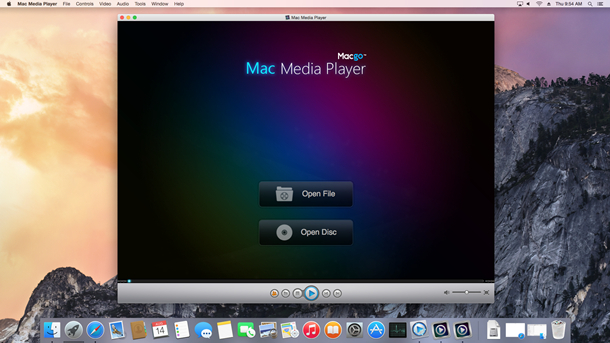
If you want to play a RMVB file, just click on "Open File" and choose the RMVB file you would like to watch from your local multimedia files, and then click "Open". Immediately, it starts to play.
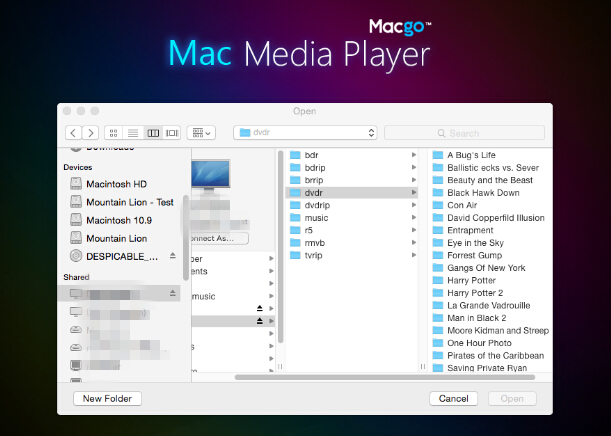
During the playback, you can make video settings as follows:
1) Snapshot: Ctrl+Alt+S
Snapshot the movie by shortcut keys or pressing the "Snapshot" in "Tools".
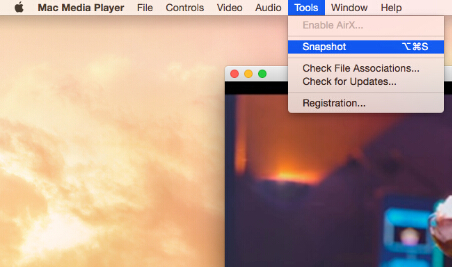
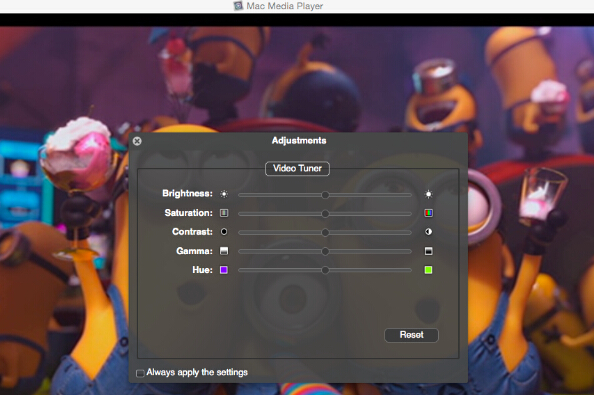
2) Adjustments
Click "Tools" button and select "Adjustments". There are five sections to be set in video tuner: brightness, saturation, contrast, gamma, and hue. If you want to reset them, you can press "Reset" button. Moreover, if you want to keep the settings, you can check the "Always apply the settings" on the left bottom.
3) Aspect Ratio
If you want to adjust aspect ratio, you can find it in "Video" on the tool menu.
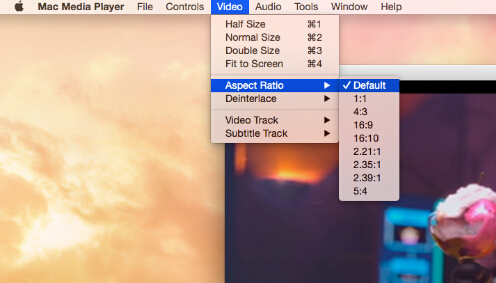
4) Screen size
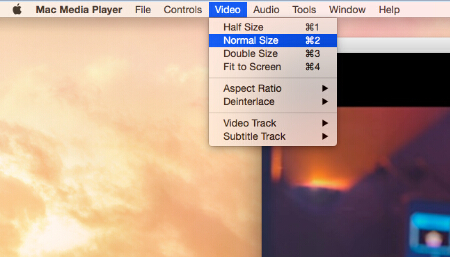
You can adjust screen size by shortcut keys or through the options in "Video" on the tool menu.
Half size: Command+1
Normal size: Command+2
Double size: Command+3
Fit to the screen: Command+4
The first and best Blu-ray media player for Mac. Support Blu-ray Disc, Blu-ray Menu, ISO files, and BDMV folder.
Mac Download BUY NOW

 Free Mac Media Player