Mac iPhone Data Recovery
System requirements:
Features overview

All-in-one Data Recovery for All iPhone styles
- Mac iPhone Data Recovery is the world's best data recovery software for iPhone on Mac Platform.
- Fantastic data recovery supports all iPhone styles, not only the popular iPhone 5, 4S, 4, 3GS, but also the previous ones.
- Best companion for iPhone, Mac iPhone Data Recovery can benefit all iPhone users in the easiest way.
Complete Photos, Contacts, Call History and Messages Recovery for iPhone
- The magic data recovery for iPhone can retrieve the lost data through Mac OS X (10.6 -10.8).
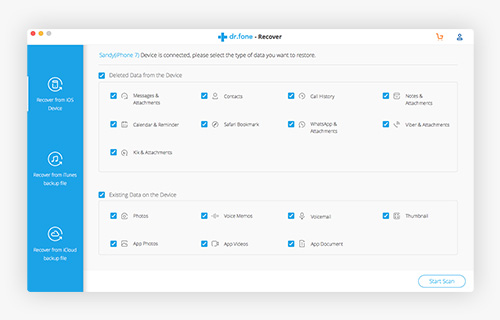
- It can provide the best data recovery of photos, messages, contacts and call history of iPhone.
- No matter caused by system crash, smash, upgrade, jailbreak or even broken, this smart Mac iPhone data recovery software can be get lost data back completely.


- It is one of the brilliant user-friendly features of Mac iPhone Data Recovery.
- After running it, this data recovery software can automatically scan i-Device, and provide the preview of the desired data.
- Arranging the files in alphabetical or chronological order, can consequently makes it convenient to look for the file you want.
Ultrafast and Easy-to-use
- Ultrafast speed of data recovery leads a fluent experience.
- It's safe enough to recover your lost files without writing to your original data.
- With clear interface and handy operation, there are only three steps to be followed - scanning, choosing and recovering. What an easy way, isn't it?

How to recovery lost data of iPhone on Mac OS
Easy-to-use as Mac iPhone Data Recovery, there are only several steps.
Step One: Free download Mac iPhone Data Recovery
Directly download from
http://www.macblurayplayer.com/user/download/Mac_iPhone_Data_Recovery.dmg
and install it on your Mac platform.
Step Two: Scan the i-Device
Run the data recovery app and click on the "Start Scan" button to scan the i-Devices.
Step Three: Open the i-Device
Choose the desired i-Device to open and its specific information will be showed.
Step Four: Choose the the file(s) to recover
Select the any file or all files in Camera Roll and/or Contacts to recover.
Step Five: Recover the lost data of the i-Device
Click on "Recover" button, and it will retrieve the file(s) automatically.
For more details, please visit the Mac iPhone Data Recovery Tutorial