Free Mac Media Player, as a multi-purpose media player, can be used as free VCD player as well. It is very applicable for you to watch any VCDs on Mac. It only needs two steps to play the VCD you want without limitation. The detailed tutorial is as follows.
Preparations you need to do:
Free trial version of this powerful Media Player is now available on Macgo Official Download Center, or you can click here to download Free Mac Media Player, and then drag its icon to your Application folder.
After installing Free Mac Media Player, you can go to "Launchpad" and click on its icon to launch the program. The simplified main interface will reduce certain misoperations. You can see two buttons there: Open File and Open Disc.
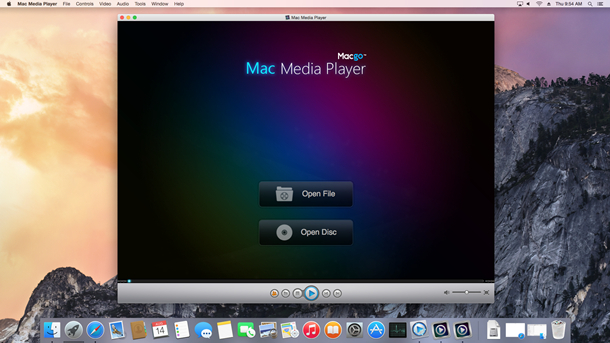
1) Insert your VCD into the drive and click on "Open Disc", then wait for a minute for the program to get started. In the next popup window, click on the disc you have inserted, then click on "Open".
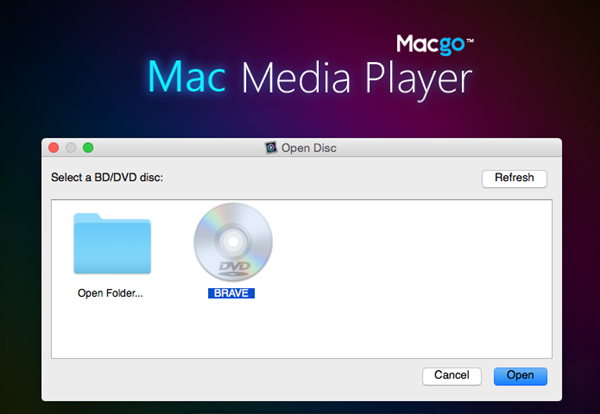
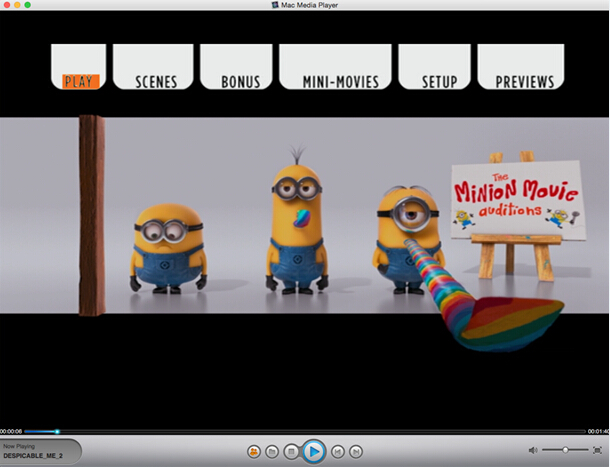
Wait a second till the main menu pops out and you can make some adjustments there according to your own preferences. You can choose where you want to watch in "SCENE SELECTION", or make other adjustments in "SET UP". Then you can directly click "Play Movie" to enjoy some movie time.
The first and best Blu-ray media player for Mac. Support Blu-ray Disc, Blu-ray Menu, ISO files, and BDMV folder.
Mac Download BUY NOW

 Free Mac Media Player