


 Free Mac Media Player
Mac Media Player - free WMA player software
Mac Media Player, famous for its perfect Media playback throughout the world, is also an excellent Free WMA Player. Featuring fantastic DTS5.1 audio system, ultrafast speed, and handy operation, Macgo WMA Player software can give you the best multimedia enjoyment. In addition, it will not cost you a dime.
Preparations you need to do:
- Mac OS X 10.6 - 10.11
- Intel Core2 Duo 2.4GHz processor or higher recommended
- 512 MB RAM or higher recommended
- 250 MB of free disk space
Free trial version of this powerful Media Player is now available on Macgo Official Download Center, or you can click here to download Free Mac Media Player, and then drag its icon to your Application folder.
After installing Free Mac Media Player, you can go to "Launchpad" and click on its icon to launch the program. The simplified main interface will reduce certain misoperations. You can see two buttons there: Open File and Open Disc.
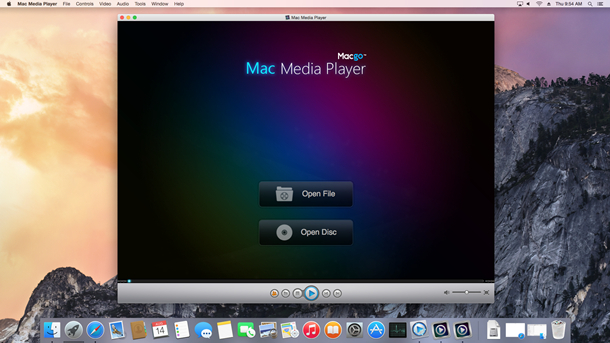
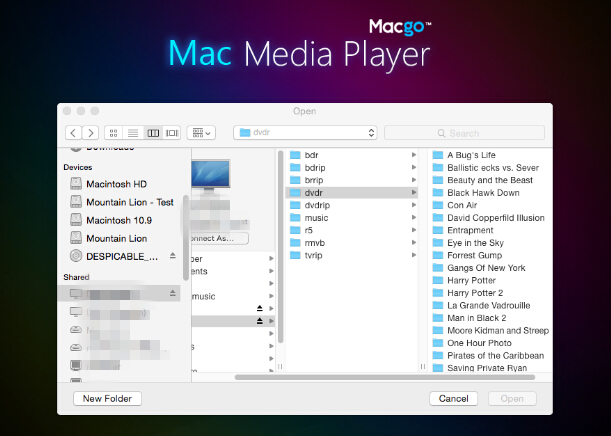
If you want to play a WMA files, just click on "Open File" and select the WMA document you would like to watch from your local multimedia files, and then click "Open". Wait for a bit, and the WMA file will be played for you directly. You can make some adjustments on the main menu, or you can directly choose “Play” and enjoy your movie time.
- Plese email us to support@macblurayplayer.com with detailed information of your device such as device model, build number, kernel version and else. Attach some snapshots would be better.
- Comment us on Macgo Facebook Page, reply to any post or send us a message.
The first and best Blu-ray media player for Mac. Support Blu-ray Disc, Blu-ray Menu, ISO files, and BDMV folder.
Mac Download BUY NOW